Introducing an alerting app at your school — step by step
Lockdown, fire or evacuation: in a school context seconds count. How to introduce an alerting app in five steps — from trial access through the first test alarm to a lived safety culture, no IT department required.
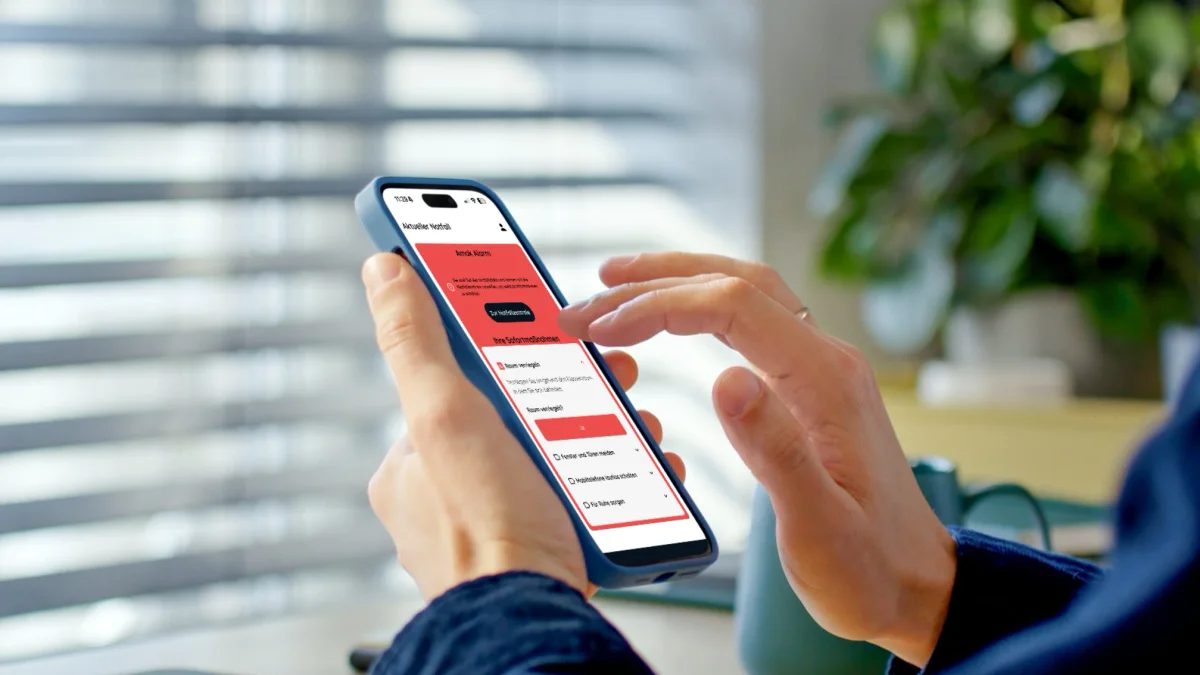
Protecting pupils and teachers is the highest priority. Whether lockdown, fire or evacuation: in a school context seconds count in an emergency — and analogue methods like sirens or announcements reach their limits. An alerting app for educational institutions is an affordable, quickly deployable solution — why that's true in general is covered in our overview of alerting apps. Here we focus on practice: the rollout at your school, step by step.
Good to know up front: the Nica alarm app is web-based, works across platforms on iOS and Android — and can be administered entirely by the school itself, without IT support.
Step 1: Clarify responsibility & project start
Before the technical rollout starts, responsibilities should be defined — that prevents friction later in the process.
- Who requests the trial access?
- Who will later be the app's admin?
- Who makes technical and organisational decisions — IT, school management, school authority?
Step 2: Activate trial access
Via the landing page for alerting in schools you request free trial access. Our team sets it up and walks you through the first steps if you like — after that you test independently for 14 days.
- A standard scenario like “lockdown” comes preconfigured.
- You get access to the web dashboard and the mobile app for iOS and Android.
- If needed: an online introduction by our team.
Step 3: Create users, groups & scenarios
Once activated, you adapt the app to your school's structure — ideally starting small to gather experience. For which scenarios have proven themselves, see our article on use cases at schools.
- Import or manually create the first users (e.g. five teachers).
- Define the group structure: teachers, administration, crisis team.
- Create scenarios: lockdown, evacuation, fire.
- Assign roles and permissions.
Step 4: Distribute the app & run the first test alarm
Now it's time for the practical test — document the run and actively gather feedback from the staff.
- Install the app on iOS and Android via QR code or store link.
- Users sign in with the provided credentials.
- Activate critical alerts — so the alarm gets through even in silent mode.
- Trigger a test alarm and test acknowledgement.
- Check the dashboard: who was reached? Who responded?
Step 5: Go-live & integration into everyday school life
After a successful test run, the app officially becomes part of everyday school life — with clear communication and fixed exercise dates.
- Invite the full user base: staff and administration.
- Communicate internally: team meeting, email, handout.
- Define an alerting code of practice: what happens for which alarm?
- Schedule regular exercises, e.g. quarterly.
Long-term success means: the app becomes part of a lived safety culture — with clear rules, regular use and acceptance among staff.
Overview: the steps to a working alarm app
| Step | Responsible | Effort | Result |
|---|---|---|---|
| Clarify responsibility | Management / IT / authority | 1 h | Project start |
| Activate trial access | Management / admin | 1 day | Access & sample scenario |
| Create users & groups | Admin | 1–2 h | First alerting structure |
| Run a test alarm | Admin + team | 1 h | Function & feedback |
| Go live | Management + staff | 1 day | System in use |
Common questions from schools
- Do we need IT support? No — the app is web-based and fully managed by school-internal admins.
- Do teachers have to provide private data? No — it can be used with initials or a school email address.
- Do teachers have to install the app privately? Usually yes — alternatively it works in the browser.
- What happens in a real alarm? All relevant groups are informed in real time with clear instructions; acknowledgements and escalations are immediately visible.
Bottom line: the rollout is simpler than many think — all it takes is a clear project start and free trial access. For alerting in the wider emergency context, see the alerting app for companies and our solution for emergency plans in education & the public sector — or get in touch directly.
Related from our offering
Keep reading
 AI-generated image
Emergency or crisis? Why the distinction decides your response
Server-room fire at 3 a.m.: emergency or crisis? Separating the two terms cleanly means alerting the right people, escalating in time — and preventing a manageable incident from becoming an existential threat.
 AI-generated image
5 common mistakes in emergency planning — and how to avoid them
Perfect on paper, useless when it counts: why emergency plans fail on vague instructions, missing upkeep, IT tunnel vision, untrained roles and slow alerting — with practical examples and concrete remedies.